Help
Birbly support
Have a question or want to report a problem? Open Settings → Help → Contact us. Describe what happened, what you were doing before the problem and what you expected.
Write to us
Support email
support@birblydeck.comYou can include technical information. The option starts off; turning it on shows the complete report. You send the message in your email app. If email does not open, you can copy the address and message.
What happens to a message you send is described in the privacy information. Read about support messages
Common questions
Do I need internet access?
You can browse cards available in your collection and saved results offline. Website links and sending messages use external services and may require an internet connection.
Where is my learning history stored?
On this iPhone. Birbly does not synchronize history between devices. Your iPhone backup may include it; downloading the app again is not the same as restoring a device backup.
What does deleting learning history remove?
After you confirm, saved tests and any unfinished test are deleted. Settings and purchases remain unchanged. This action does not change existing device backups.
Is my support message saved?
In Birbly it stays only in the Contact screen’s memory and may disappear when the app ends. Your email app may keep a draft. Copies in email and the clipboard remain outside Birbly.
Finding your way around
- Browsing a deck
- Open a deck from My collection and choose a bird. Swipe sideways to move to the next or previous card.
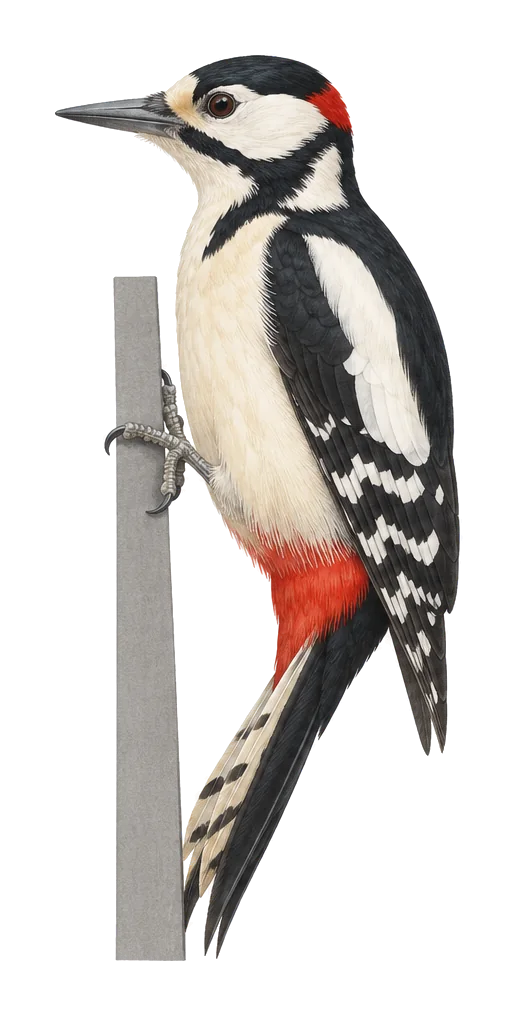
- Two illustrations
- Below the illustration you can switch between the bird at rest and in flight.
- A closer look
- Tap an illustration to open it for zooming and moving.
- Testing yourself
- Choose “Test yourself” in a deck or the whole collection. Browsing cards does not change test results.
- Settings
- In Settings you can choose Polish or English, light or dark appearance and the text size, and replay the introduction.